
Pairing File
Guide to installing pairing files to installed apps within Impactor.
Pairing Files are a way for apps to communicate to your device remotely (or as you can say, locally) to do various functions like a computer would.
For example, Antrag uses this file to list all installed applications on your device, including functionality for deleting said applications.
That’s just not all, it can be used for JIT, system logs, installing iOS apps, and more!
Prerequisites
Make sure you have the latest version of Impactor installed.
Supported Apps for Pairing File
SideStore: Uses your Apple ID to install iOS apps.Feather: Uses raw certificates to install iOS apps.SparseBox: Device customizer.LiveContainer + SideStoreUses your Apple ID to install iOS apps.Antrag: List currently installed iOS apps.Protokolle: View logs from system processes.StikDebug: Enable JIT for iOS apps.EnsWilde: Device customizer.ByeTunes: Import mp3 files to the Music App.
Installing the Pairing File
Once you have Impactor installed, simply plug in your iOS device and head over to the Utilities screen inside of the app.
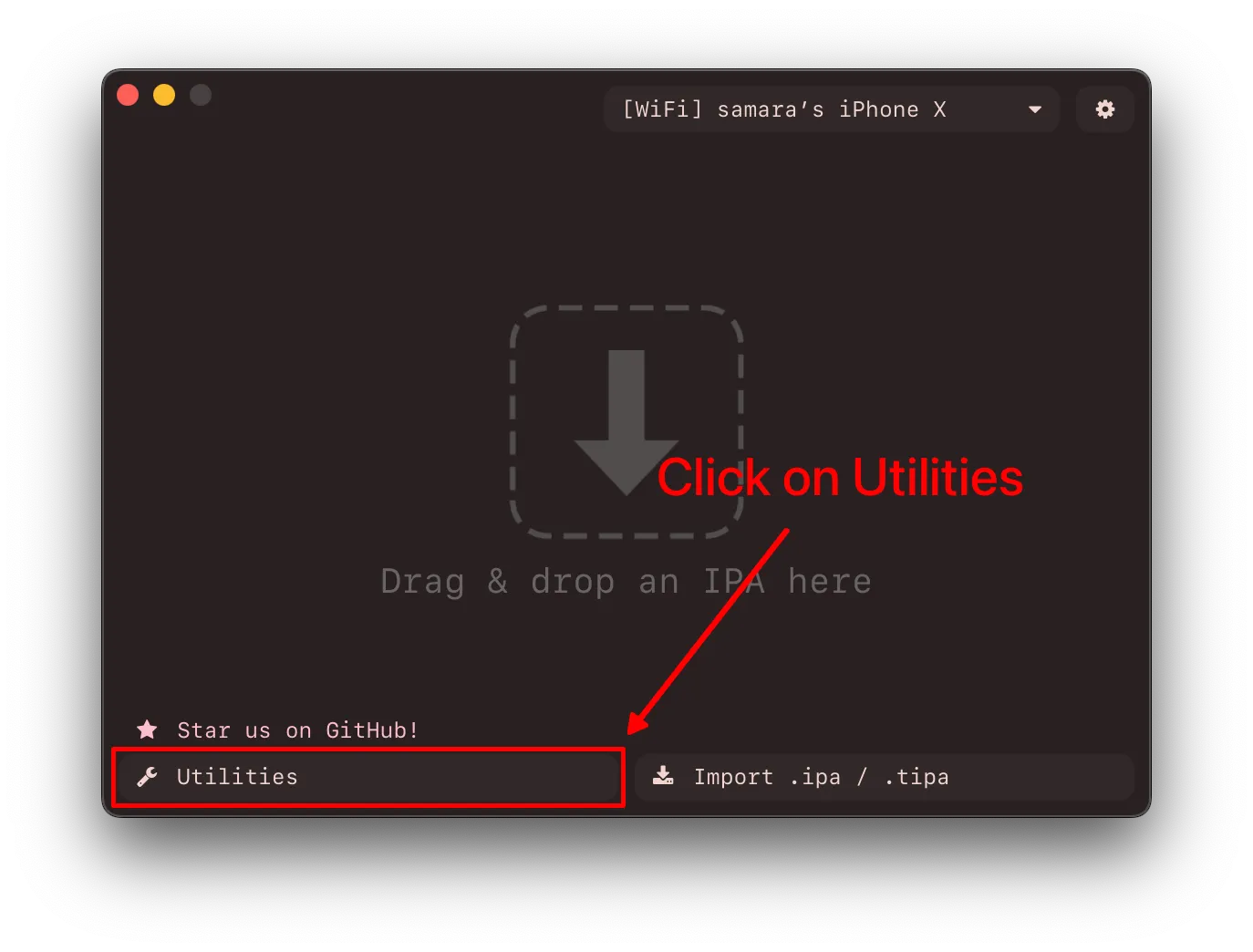
Once here, you can press the Install Pairing button to the currently installed supported applications on your device.
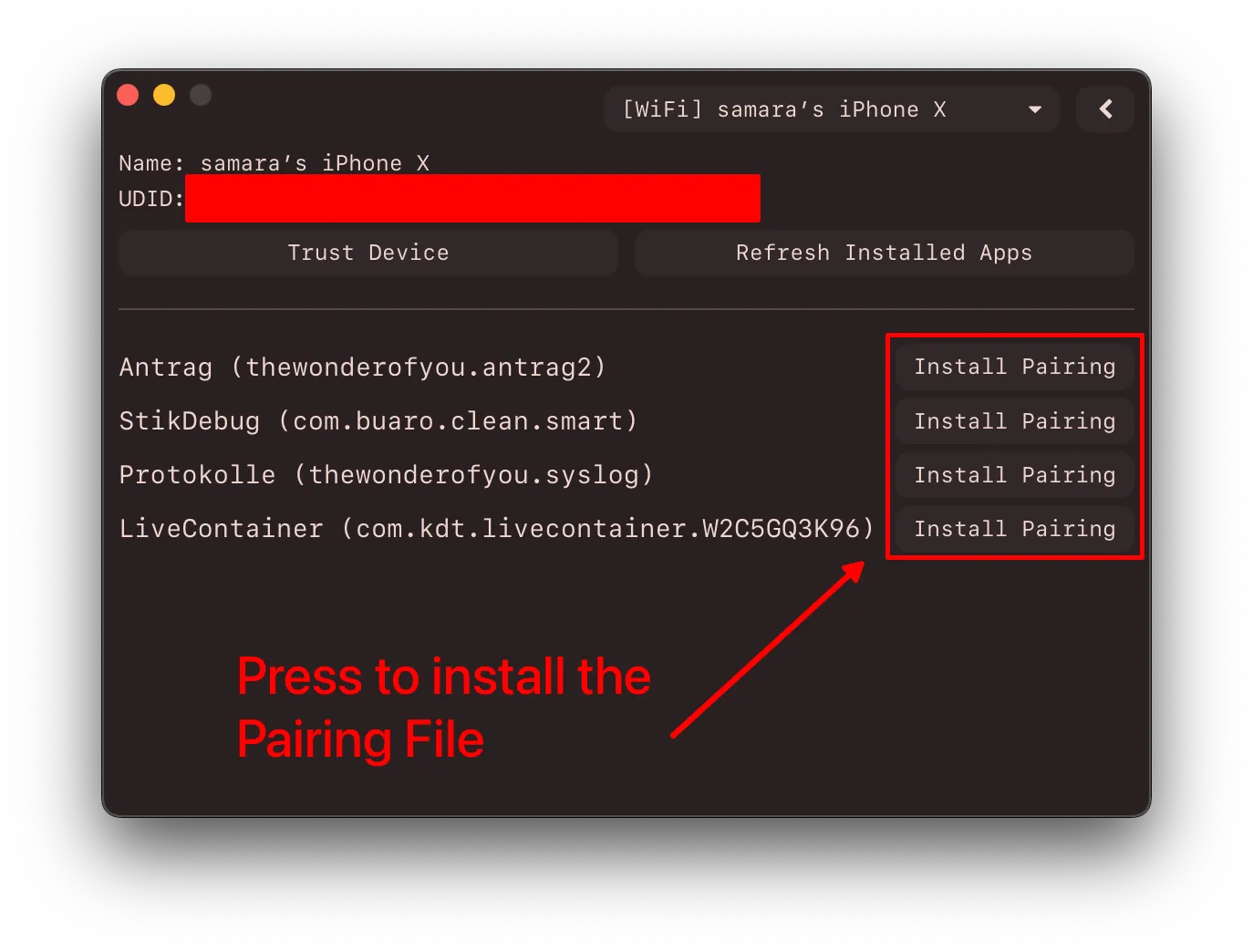
After this, it should be complete! Make sure to re-launch your specified application to make sure everything is running correctly.